 ClankerHigh
↓ Install guide
Download & install.
ClankerHigh works in Chrome and Opera GX. It isn't on the Chrome Web Store, so you load it yourself. It takes about two minutes.
Download the zip
Use the button above. Your browser will save ClankerHigh.zip to your Downloads folder.
Unzip it
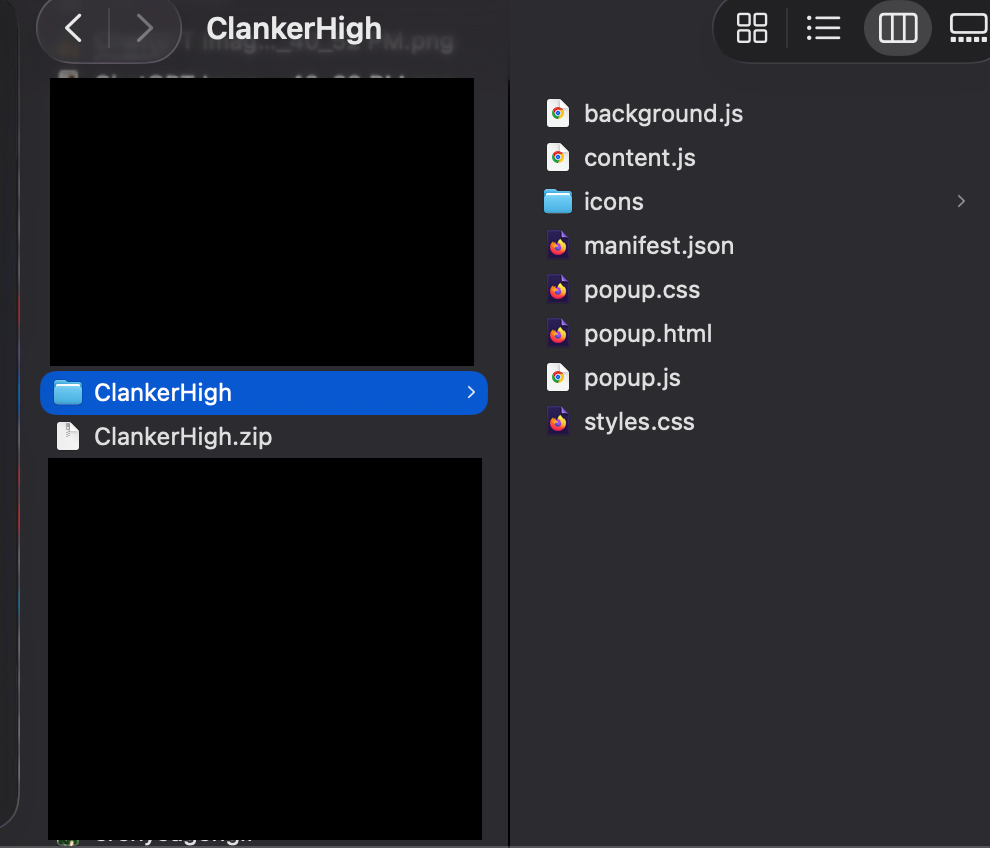
Double-click the zip (Mac) or right-click it and choose Extract All (Windows). You'll end up with a folder called ClankerHigh that contains the extension files.
Keep this folder somewhere it won't be deleted. The browser loads the extension from it, so if the folder goes, the extension goes too.
Open your browser's extensions page
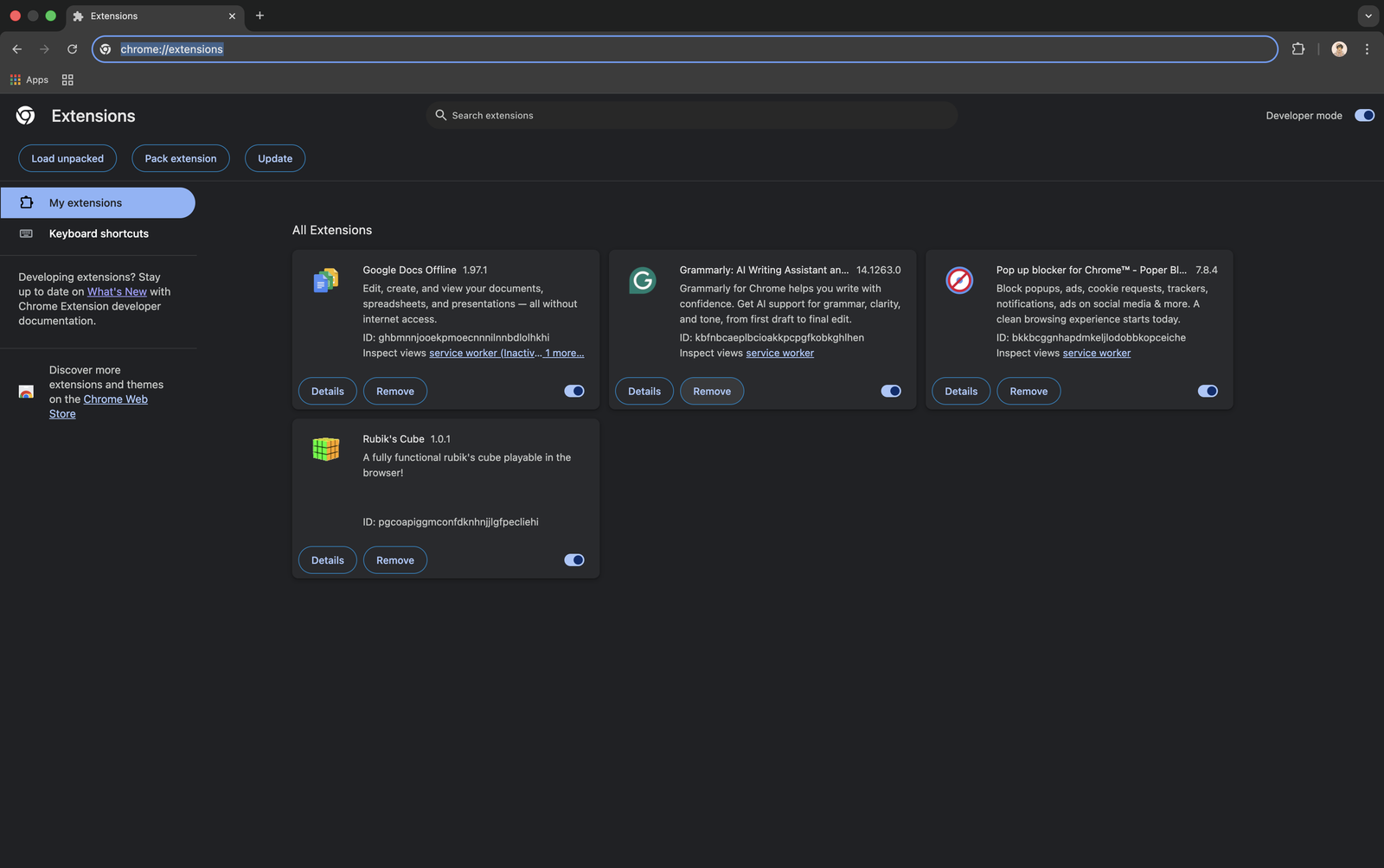
Paste this into the address bar and press Enter.
chrome://extensions
Click the extensions cube  in the left sidebar. If it isn't there,
 opera://extensions in the address bar works too.
Either way, you should land on a page that looks like this:
Turn on Developer mode
It's the switch in the top-right corner of the extensions page. Once it's on, a row of buttons appears at the top, including Load unpacked.
Load the unpacked folder
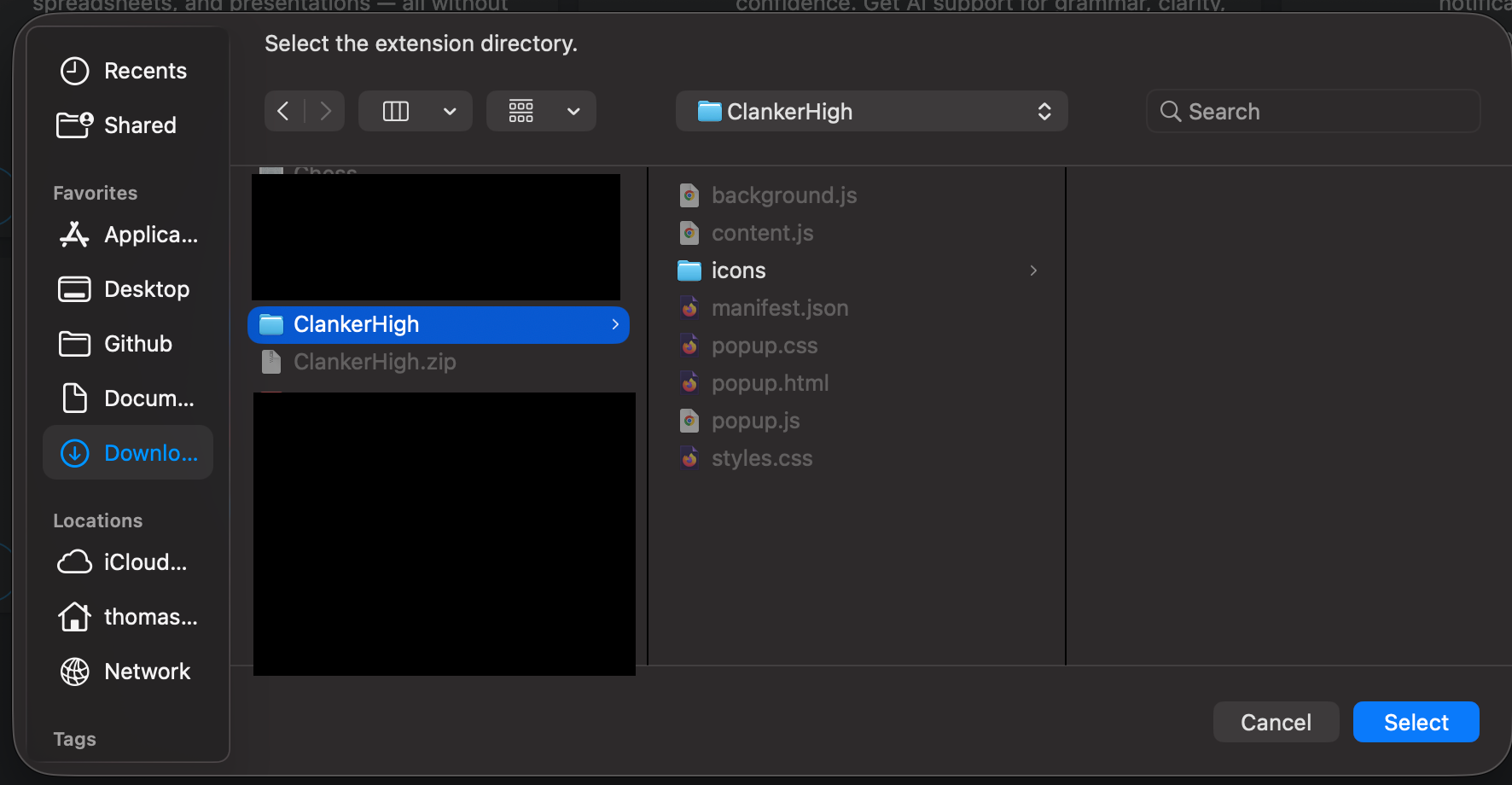
Click Load unpacked and choose the ClankerHigh folder you unzipped in step 2. Select the folder itself, not a file inside it.
ClankerHigh will appear in your list of extensions. If you see an error about the manifest, you probably picked the wrong folder. Go one level deeper and pick the one that contains manifest.json.
Pin it to your toolbar
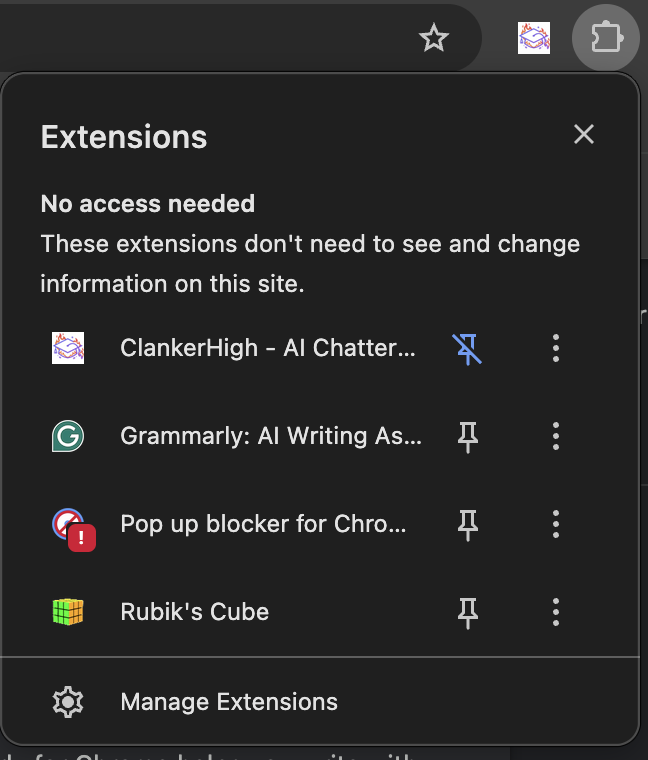
Click the puzzle-piece icon to the right of the address bar and press the pin next to ClankerHigh. That keeps the popup one click away whenever you're on a quiz.
That's it
Open a ChatterHigh daily quiz or module. The answer shows in the popup and is selected on the page for you. There's no account to create: the extension registers itself the first time it runs.
Updating to a new version
ClankerHigh folder with the new files. Then go back to the extensions page and click the refresh icon on the ClankerHigh card. If that doesn't take, remove the extension and repeat step 5 with the new folder.